Trying to keep up with assignments, lesson plans, and endless to‑do lists can feel exhausting for both students and teachers. When everything is scattered across notebooks, apps, and sticky notes, important tasks slip through the cracks. This guide walks through practical, free tools that help organize work, improve learning, and cut down on stress—without needing a tech background.
Why Staying Organized Is So Hard
For many people in the US, school and teaching are no longer 8‑to‑3 jobs. Students juggle part‑time work, sports, and family responsibilities, while teachers balance grading, parent emails, meetings, and planning.
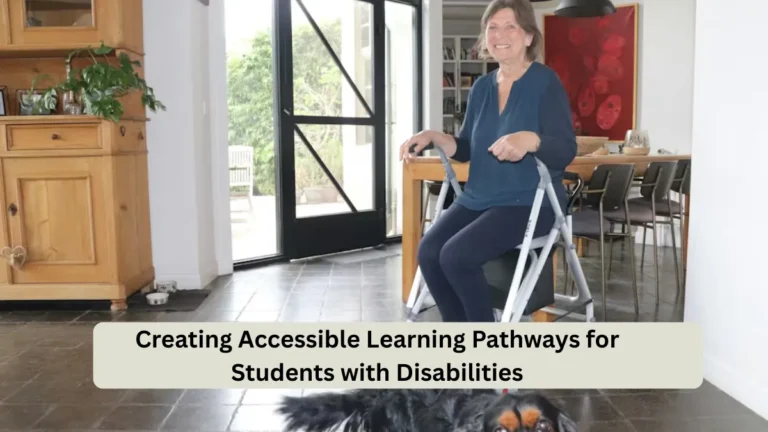
 Creating Accessible Learning Pathways for Students with Disabilities
A few common reasons things feel out of control:
- Too many apps and platforms
Classes use different systems, so students and teachers bounce between emails, learning platforms, and chat tools. - No single “home base”
Notes, deadlines, and resources are scattered—some on paper, some in apps, some in photos. - Constant distractions
Phones, social media, and notifications break focus when trying to study or prepare lessons.
The result is missed deadlines, last‑minute cramming, and late‑night grading sessions that never seem to end. The tools below help address these exact problems step by step.
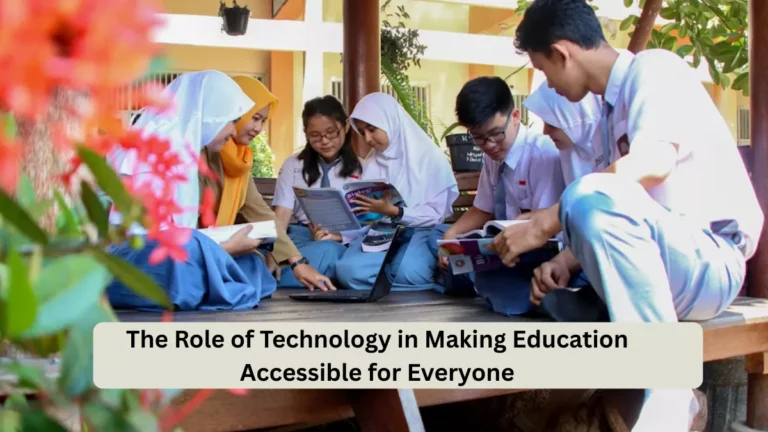
 The Role of Technology in Making Education Accessible for Everyone
Step 1: Use One Main Workspace App
A single, reliable “home base” makes a big difference for both students and teachers.
Notion – All‑in‑One Organizer
Notion is a free workspace where you can create pages for classes, lesson plans, to‑dos, and personal projects in one place. It works on phones, tablets, and computers, so you can check your notes from anywhere.
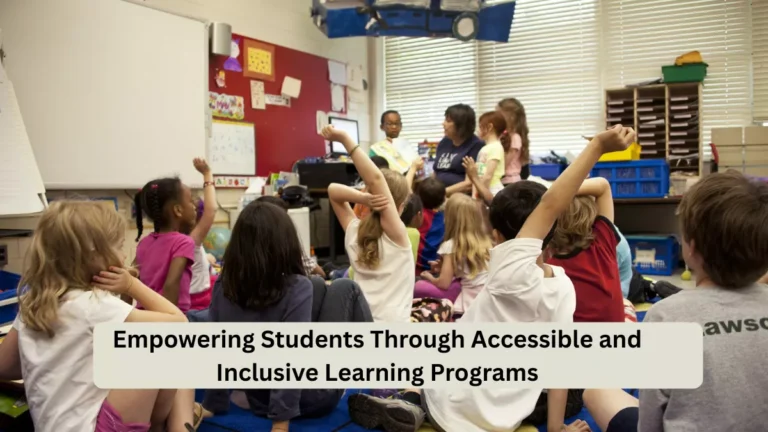
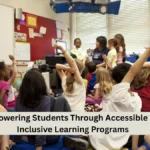 Empowering Students Through Accessible and Inclusive Learning Programs
Why it helps:
- Students can track assignments, exams, and study notes in separate pages.
- Teachers can build simple lesson dashboards, reading lists, and weekly plans.
- You can use templates for class notes, reading logs, and task lists instead of starting from scratch.
How to set it up (simple steps):
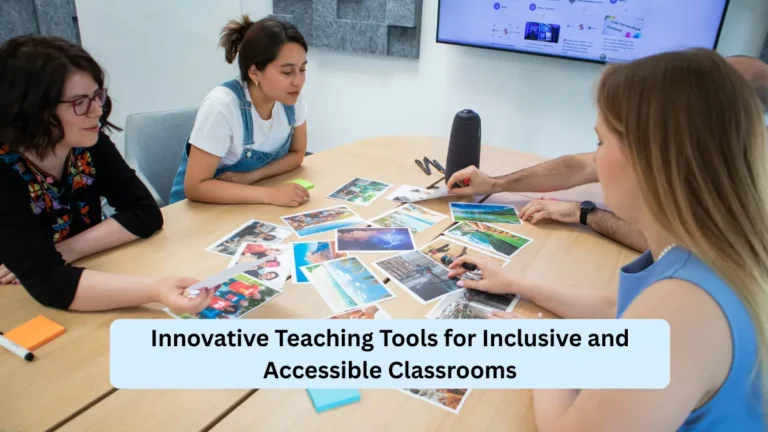
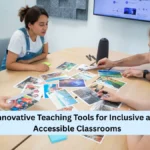 Innovative Teaching Tools for Inclusive and Accessible Classrooms
- Sign up with email and download the app on your phone and laptop.
- Create a page called “Fall Semester” or “2025–2026 School Year.”
- Inside that page, add sub‑pages for each class or subject.
- Add a checklist section for upcoming tests, projects, and grading.
- Open it once a day and update what’s done and what’s coming next.
For someone in the US taking community college classes in the evenings, Notion can hold both work projects and school tasks in one place, so nothing gets lost between jobs, kids, and classes.
Step 2: Keep Tasks and Deadlines Under Control
Once everything lives in one place, the next problem is remembering what to do and when.
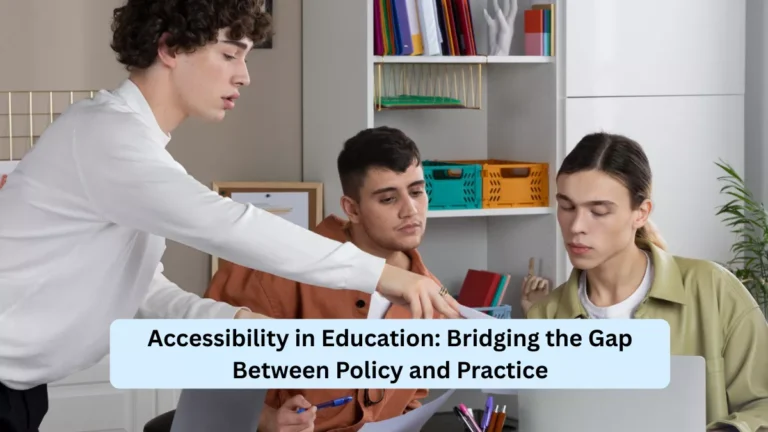
 Accessibility in Education: Bridging the Gap Between Policy and Practice
Todoist or Microsoft To Do – Simple Task Managers
Free task apps like Todoist and Microsoft To Do help you break big jobs into smaller steps and see everything at a glance.
Why they help:
- You can write natural phrases like “Study for biology quiz next Friday” and the app sets the date automatically.
- Tasks can be grouped by class, period, or project.
- You get reminders before something is due.
Basic setup for a student:
- Create projects named after your classes (English, History, Algebra, etc.).
- Add tasks like “Finish Chapter 3 reading” with due dates.
- Each morning, open the “Today” view and decide what you’ll actually do.
- Check off items as you finish to see progress.
Basic setup for a teacher:
- Create projects like “Grade work,” “Lesson planning,” and each class name.
- Add repeating tasks such as “Post weekly assignment” or “Update gradebook.”
- Use reminders for things that easily slip through—like sending progress emails or printing materials.
Microsoft To Do integrates nicely with email and calendar tools many US schools already use, which makes it easier for teachers and staff.
Step 3: Make Note‑Taking and Reading Easier
Good notes save time later, whether you’re prepping for an exam or reviewing last week’s lesson plan.
OneNote or Google Keep – Quick, Flexible Notes
OneNote works like a digital binder, while Google Keep is more like digital sticky notes. Both are free and work well on phones.
Why they help:
- Students can keep a separate section for each class, with pages for lectures, homework, and exam review.
- Teachers can keep lists of ideas, links, and quick reminders, then turn them into full lessons later.
- Notes sync across devices, so you can review during a commute or between classes.
Simple way to use them:
- During class or meetings:
- Create a new page with the date and topic.
- Write short bullet points instead of full sentences.
- Highlight or tag anything that sounds like it might be on a test or important for grading.
- After class or work:
- Spend five minutes cleaning up the notes.
- Add a heading called “Key points for exam” or “What to review with students.”
Step 4: Use Free Study and Review Tools
Remembering information is hard when you only read notes once. Active practice helps more than re‑reading.
Quizlet – Flashcards and Practice Games
Quizlet lets students build flashcards and practice using matching games, practice tests, and study modes. It has a free version that works well for most people.
Why it helps:
- Great for vocabulary, formulas, dates, and definitions.
- Works for middle school through college and adult certification exams.
- Easy to study on the bus, during breaks, or at home.
How a student might use it:
- Create a set for each unit (for example, “US History – Civil War”).
- Add terms on one side and short, clear definitions on the other.
- Use “Learn” and “Test” modes a few minutes each day instead of cramming.
- Before a test, run through “Flashcards” and “Match” for a quick refresher.
How a teacher might use it:
- Build a class set for a chapter and share it with students.
- Encourage students to study a little daily and track how often they use it.
- Use practice tests in class as a low‑pressure warm‑up activity.
Step 5: Improve Writing and Communication
Clear writing matters in emails to professors, assignment submissions, and parent communication.
Grammarly – Writing Assistant
Grammarly’s free version checks spelling, basic grammar, and clarity in documents, emails, and some websites.
Why it helps:
- Students catch simple mistakes before turning in essays or discussion posts.
- Teachers can quickly review parent emails and instructions to make sure they sound clear and professional.
- It can help non‑native English speakers feel more confident in daily writing.
Practical way to use it:
- Install the browser extension on your home or school computer.
- Draft assignments or emails normally.
- Review suggested changes, but only accept the ones that make sense for your own style.
This keeps writing support helpful without losing your own voice.
Step 6: Stay Focused While Studying or Planning
Even with good tools, distractions can ruin a study session or planning block.
Forest or Focus Keeper – Timers That Build Better Habits
Focus apps use short work intervals with breaks (often called the Pomodoro method) to keep you moving without burning out.
Why they help:
- Breaks tasks into 25‑minute or similar chunks that feel more manageable.
- Help students who are working after shifts or caring for kids stay on track.
- Give teachers a way to focus on grading or planning without getting lost in email.
How to use them for study sessions:
- Decide on one specific task: “Review biology notes for Chapter 4.”
- Set the timer for 25 minutes and put the phone face down.
- Work only on that task until the timer ends.
- Take a 5‑minute break, stretch, or get water.
- After 3–4 rounds, take a longer break.
Over time, this routine can train your brain to focus more easily in short, powerful bursts.
Step 7: Make Lessons and Presentations More Engaging
For teachers, building engaging lessons every week is a constant challenge.
Slides and Interactive Tools
Tools like Google Slides and classroom interaction apps give students more ways to participate and stay interested.
Useful free tools:
- Slides tools – Create simple, visual presentations with images, charts, and short text so students aren’t just reading from a textbook.
- Nearpod or similar apps – Turn lessons into interactive experiences with quizzes, polls, and open‑ended questions students answer from their own devices.
Simple way to use them:
- Start with a short slide deck for the key ideas.
- Add 2–3 interaction points, such as a quick poll or short quiz question.
- Use student responses to see what needs reteaching.
- Save the session data to guide the next day’s lesson.
This works well in US classrooms where students have school‑issued devices or can share devices in small groups.
Helpful Tips and Common Mistakes to Avoid
A few small habits make these tools much more useful in everyday life.
Helpful tips
- Start with just one or two tools
Adding too many apps at once usually leads to quitting all of them. Pick one for tasks and one for notes to begin. - Build a “daily reset” routine
Spend 5–10 minutes each evening checking your task app and notes for the next day. - Keep tools consistent across home and school
Use the same task and note apps on your phone, laptop, and, if allowed, school devices.
Common mistakes
- Treating tools like magic solutions
Apps help, but they do not replace regular study or prep time. They just make that time smoother. - Over‑organizing instead of doing the work
It is easy to spend an hour redesigning a planner page instead of actually reading or grading. - Ignoring backups and sync
Make sure your main tools sync online so you do not lose everything if a device breaks.
Conclusion
Staying on top of schoolwork and teaching responsibilities is tough when everything feels scattered and urgent. The right free tools give students and teachers a calmer, more organized way to handle daily tasks, notes, and study time. By starting small—with one workspace app, one task app, and a simple study tool—it becomes easier to find what matters, focus for short periods, and build steady routines that fit real life in the US.
FAQ’s
Are these tools really free to use?
Which tool should a complete beginner start with?
Can these tools help adult learners going back to school?
✨ You May Also Like ✨