Most people don’t realize their digital files are a mess until they can’t find something important. A tax document, a school assignment, a family photo, or a work file suddenly feels lost, even though it’s somewhere on the computer or phone.
This problem affects students, office workers, small business owners, and retirees alike. Over time, files pile up. Downloads folders grow. Photos scatter across devices. The result is stress, wasted time, and frustration.
 How to Improve Typing Speed for Office Work (A Practical, Real-World Guide)
The good news is that organizing digital files doesn’t require special software or technical skills. With a simple system and consistent habits, anyone can keep their files neat, searchable, and easy to manage.
Why Digital File Clutter Happens
Before fixing the problem, it helps to understand why it happens in the first place.
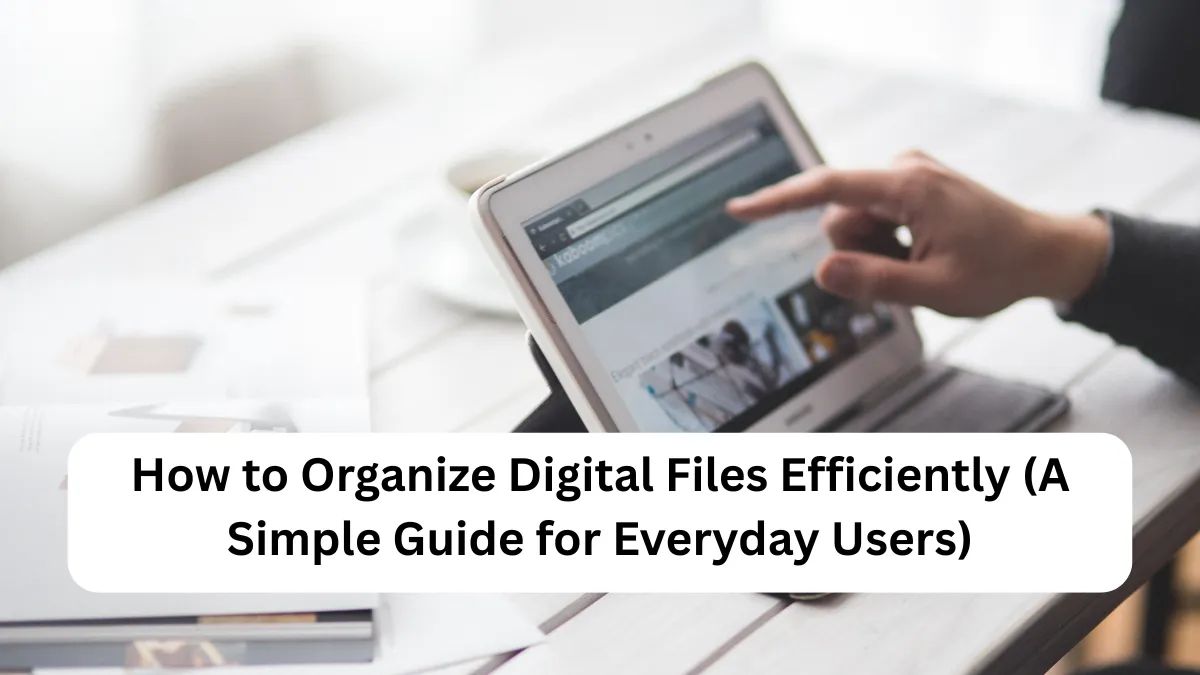
 How to Organize Digital Files Efficiently: A Simple Guide That Actually Works
Too Many Devices
Most Americans use multiple devices—phones, laptops, tablets, and external drives. Files get saved in different places, often without a clear plan.
Default Saving Locations
Files automatically land in folders like “Downloads” or “Desktop.” Over time, these folders become crowded and confusing.
 How to Send Large Files Securely Online (A Simple Guide for Everyday Users)
No Naming System
Files saved as “final,” “final2,” or “document_new” quickly become impossible to tell apart.
No Regular Cleanup
Digital clutter grows slowly. Without routine maintenance, months or years of unused files build up unnoticed.
 Online payment failed? What to do in the USA
Step-by-Step Guide to Organizing Digital Files Efficiently
Step 1: Decide What You’re Organizing
Start small. Trying to organize everything at once can feel overwhelming.
Pick one area, such as:
 How to Reset Forgotten Passwords Safely: A Simple Guide for Everyday Users
- Your laptop documents folder
- Your phone photos
- Your email attachments
- A work project folder
Once one area feels under control, move on to the next.
Step 2: Create Clear Main Folders
Think of folders like drawers in a filing cabinet. Each drawer has one purpose.
Common Main Folder Ideas
- Personal
- Work
- School
- Finance (statements, receipts, non-sensitive records)
- Photos
- Home (manuals, warranties, instructions)
Keep main folders simple. If you need more detail, use subfolders.
Step 3: Use Logical Subfolders
Subfolders help break large categories into smaller, easier sections.
Example for Photos:
- Photos
- 2023
- Family
- Vacation
- 2024
- Holidays
- Events
- 2023
Example for Work:
- Work
- Projects
- Meetings
- Reports
This structure mirrors how people naturally think, making files easier to locate later.
Step 4: Name Files So They Make Sense Later
Good file names save time and prevent confusion.
A Simple Naming Formula
Date – Description – Version (if needed)
Examples:
- 2024-03-12 Resume Update
- 2023-11 Utility Bill
- 2024-01 Project Proposal v1
Avoid vague names like “important” or “stuff.” Be specific and consistent.
Step 5: Clean Out Unnecessary Files
Not everything needs to be saved forever.
Go through folders and remove:
- Duplicate files
- Old drafts you no longer need
- Unused downloads
- Blurry or accidental photos
If you’re unsure, create a temporary folder called “Review Later” and revisit it after a few weeks.
Step 6: Organize Photos Separately
Photos often cause the most clutter.
Practical Tips for Photos
- Sort by year first
- Use event-based folders (birthdays, trips, holidays)
- Delete duplicates and screenshots you don’t need
- Rename important photos with meaningful names
Many people in the U.S. take thousands of photos each year. A little sorting goes a long way.
Step 7: Use Cloud Storage Thoughtfully
Cloud storage can help, but only if it’s organized.
Keep the same folder structure across devices so files feel familiar no matter where you access them.
Avoid saving random files directly to the cloud root folder. Treat it like a digital filing cabinet, not a junk drawer.
Step 8: Set a Weekly or Monthly Maintenance Habit
Organization works best when it’s maintained.
Spend 10–15 minutes:
- Moving new downloads into proper folders
- Renaming recent files
- Deleting items you no longer need
This small habit prevents clutter from building up again.
Helpful Tips That Make a Big Difference
Use Search as a Backup, Not a Crutch
Search tools are helpful, but relying only on search often leads to sloppy habits. Organized folders make searching faster and more accurate.
Keep Folder Depth Reasonable
Avoid creating folders inside folders inside folders. If it takes more than three clicks to find a file, the system may be too complex.
Be Consistent, Not Perfect
A simple system used consistently works better than a perfect system that’s hard to follow.
Common Mistakes to Avoid
- Saving everything to the desktop
- Using unclear file names
- Mixing personal and work files
- Never deleting old content
- Changing folder structures too often
Avoiding these habits keeps your system stable and reliable.
Conclusion
Organizing digital files efficiently isn’t about being perfect or technical. It’s about creating a system that feels natural and works for your daily life. When files are clearly named, logically stored, and regularly reviewed, finding what you need becomes quick and stress-free.
FAQ’s
How long does it take to organize digital files?
It depends on the amount of clutter. A basic cleanup can take one to two hours. Ongoing maintenance usually takes just a few minutes each week.
Should I organize files the same way on my phone and computer?
Yes. Similar structures across devices reduce confusion and make it easier to find files quickly.
Is it okay to delete old files?
If you no longer need them and they don’t serve a purpose, deleting is fine. When unsure, store them in an archive folder temporarily.
What’s the best way to organize work and personal files?
Keep them in separate main folders. This helps with focus, privacy, and easier backups.
✨ You May Also Like ✨